Framer Tutorials24 July 20252 min read
How to Build Multiple Landing Pages with Framer CMS (Without Losing Your Mind)
Reach different audiences with tailored landing pages—all powered by a single CMS setup in Framer.
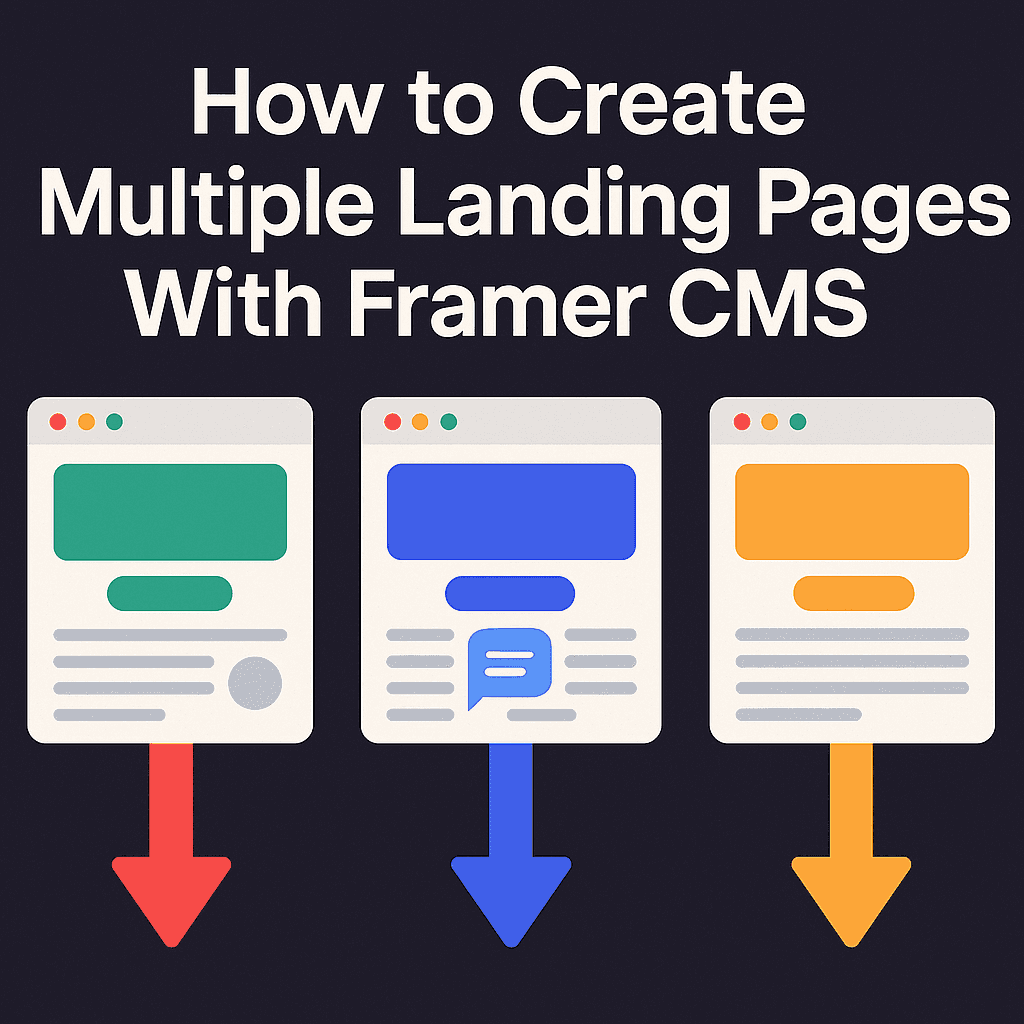
Why You Should Create Audience-Specific Landing Pages
One-size-fits-all websites rarely convert well. Whether you're talking to small business owners, SaaS founders, or event organizers—each group has different needs and priorities.
That’s where smart landing pages come in. Instead of duplicating and editing the same layout over and over, Framer CMS lets you build dynamic, tailored pages from a single source of truth.
Let’s walk through how to do it.
Step 1: Set Up Your CMS for Landing Pages
Start by creating a new CMS Collection called something like “Marketing Pages.” Include fields that cover the content blocks you’ll need:
- Page Title
- URL Slug
- Hero Headline
- Subtext or Value Proposition
- CTA Text + Link
- Key Features
- Social Proof or Reviews
- Optional: Industry-Specific FAQs, Custom Colors, Product Images
This collection acts as your content engine. Add an entry for each audience you want to target—whether it’s photographers, fitness coaches, or e-commerce shops.
Step 2: Design One Modular Template
Build a single page layout that acts as a dynamic template. Every section—hero, features, testimonials—should pull from your CMS.
Keep it flexible:
- Use CMS bindings for all text and images.
- Add visibility toggles so you can hide or show sections conditionally.
- Avoid hardcoding anything audience-specific.
The more modular you make it now, the more you can reuse it later.
Step 3: Use Slugs for Easy Routing
Here’s the trick: each item in your CMS has a slug field that Framer turns into a URL automatically.
If you have:
- Slug:
/photographers - Slug:
/coaches - Slug:
/shop-owners
Then Framer creates:
- yoursite.com/photographers
- yoursite.com/coaches
- yoursite.com/shop-owners
All from the same layout. No need to duplicate or maintain separate pages.
Step 4: Customize with Visibility Toggles
Want your coaching page to include a pricing table, but not your product demo page?
No problem. Just add fields like:
- ShowPricingTable (true/false)
- ThemeColor (string)
- VariantStyle (dropdown)
Then use Framer’s visibility logic to show/hide or style elements based on CMS values.
Example:
- If
ThemeColor= "Blue", use a cooler background. - If
ShowPricingTable= false, hide the pricing section entirely.
This allows each page to feel personalized without needing entirely different layouts.
Step 5: Publish and Scale
When you're done, hit publish. Framer will generate SEO-optimized, responsive pages for every audience segment—all managed through one CMS.
This structure makes it easy to:
- Run targeted ad campaigns
- Personalize messages for different groups
- A/B test ideas without rebuilding from scratch
Final Thoughts
Framer’s CMS system makes scaling landing pages painless—and honestly, kinda fun.
Whether you're building for niche communities or testing multiple angles for a single product, this approach saves time, reduces chaos, and helps you stay consistent.
