Framer Tutorials20 June 20242 min read
How to easily use icons inside of framer
A simple way of integrating icons into framer using text.
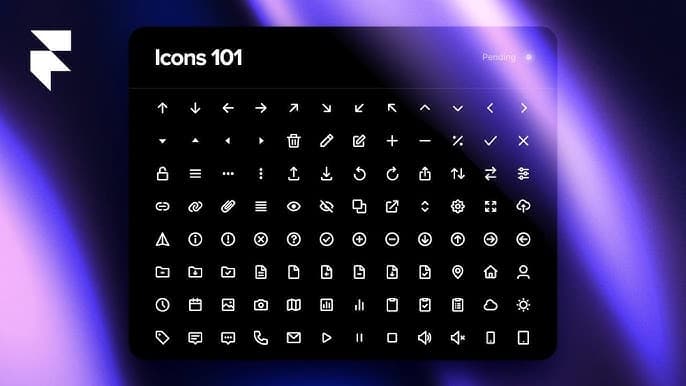
How to use icons inside of Framer?
Everyone needs to use icons in some shape or form at a given time in developing or designing a website. It's a tedious task to go a website, search for an icon pack that you like, downloading each PNG or SVG file, importing them to your system... and so on and so forth
But TIL that if you are using framer, there is a very easy way of using icons and is just by pure text. Yes you read that right, just plain TEXT.
How to place icons as plain text
There is actually a font inside of framer called Material Symbols that let's you just type a keyword that represents an icon and it will insert that icon. It's actually just works text under the hood, so you can set different font sizes to increase or decrease the icon size, or even set it to bold to make the icon thicker.
Here you can find a list of all the keywords and you can search for specific icons: https://fonts.google.com/icons
Option 1 - Integrated Icons
1.Open Framer
Start by opening your Framer project or create a new one.
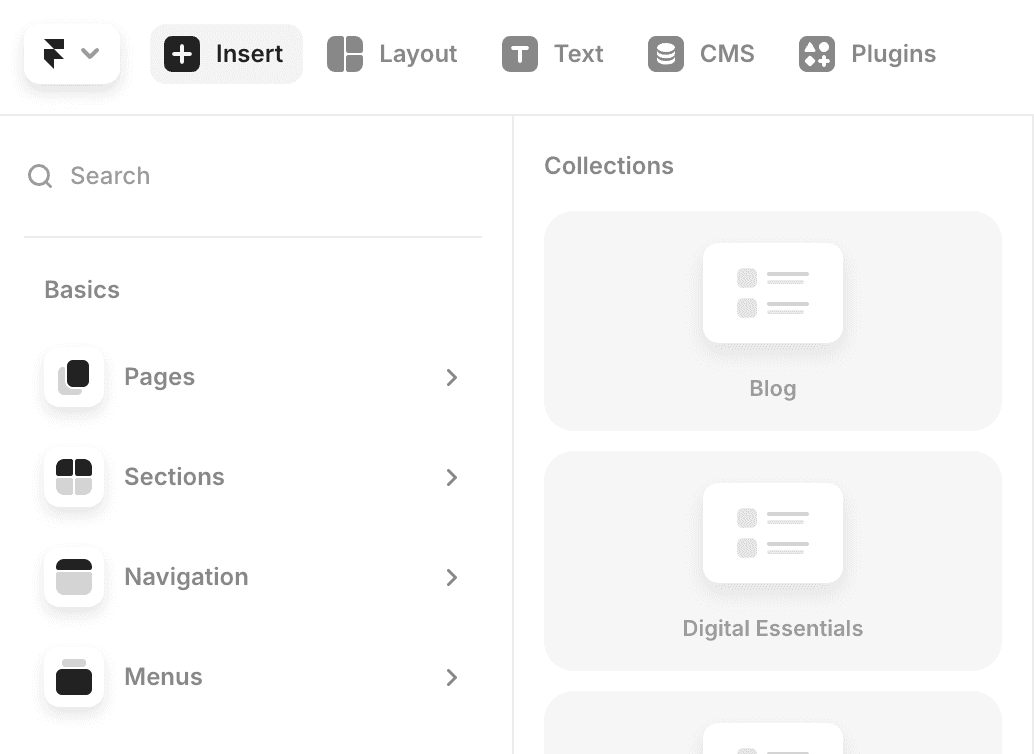
2.Go to the top left to insert an element
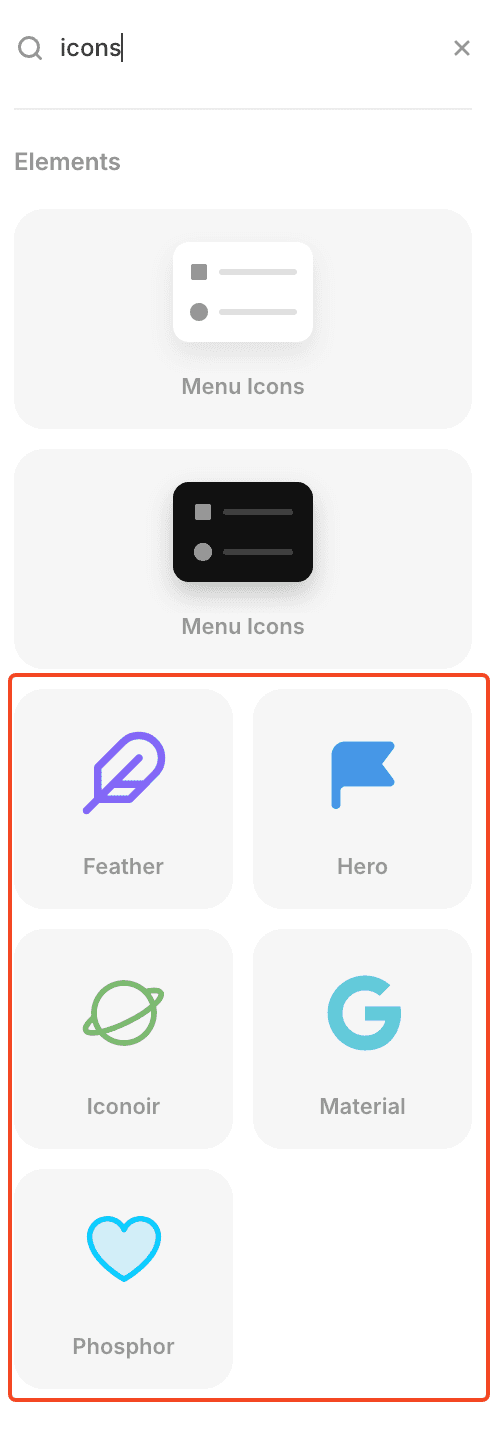
And search for icons
3.Choose your favorite
Decide which icon library you would like to use.
💡 My favorite is phosphor, very complete and easy to use
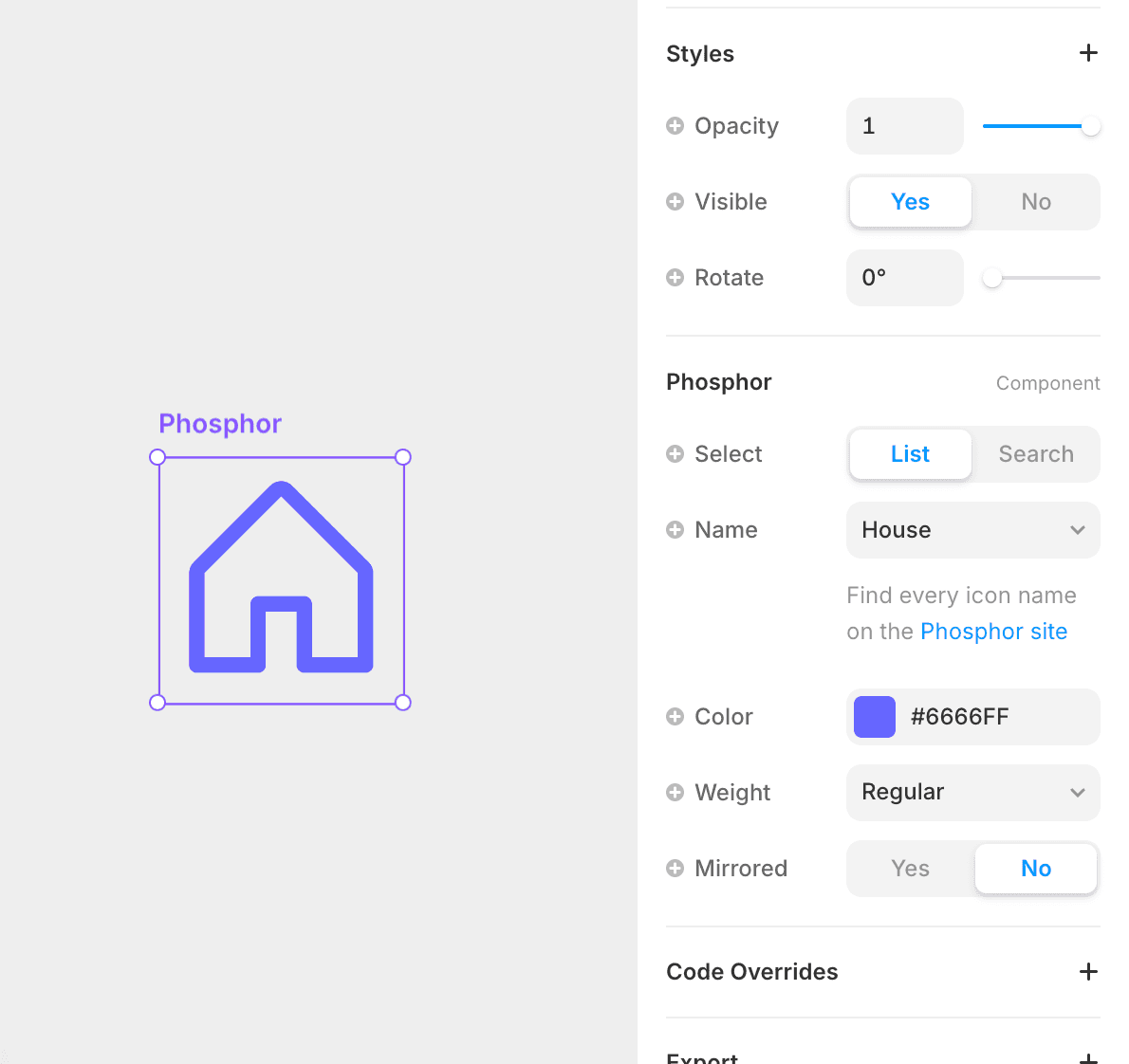
4.Drag it to the canvas and edit it
Go to the style panel and select your icon from the dropdown or search for it
Pro tip: Go to the phosphor website to easily search your icon and just copy paste it to save time
Option 2 - Material Icons
1.Open Framer:
Start by opening your Framer project or create a new one.
2.Select a Text Layer:
Add a new text layer where you want your icon to appear.
3.Choose the Font:
Change the font of the text layer to “Material Symbols”.
4.Type the Icon Name:
Simply type the keyword that corresponds to the icon you need. For example, typing “home” will insert a home icon.
5.Customize the Icon:
Use the text formatting options to adjust the size, weight, and color of your icon.
And if you’re ready to take your design to the next level, **Akila Studio** is here to help. Reach out to us today to see how we can transform your project!
